How to Install a Progressive Web Application (PWA)
What is a PWA?
A progressive web application (PWA) is a web site that can be downloaded to your device and used like an app. OSRTA is an example. While a PWA can be used like any regular web page, installing it can provide some advantages. An installed PWA can still be used when there is no internet connection. It will also appear alongside your other apps for convenient access.
The installation process varies depending on your operating system and web browser.
Installing a PWA on iOS/iPadOS
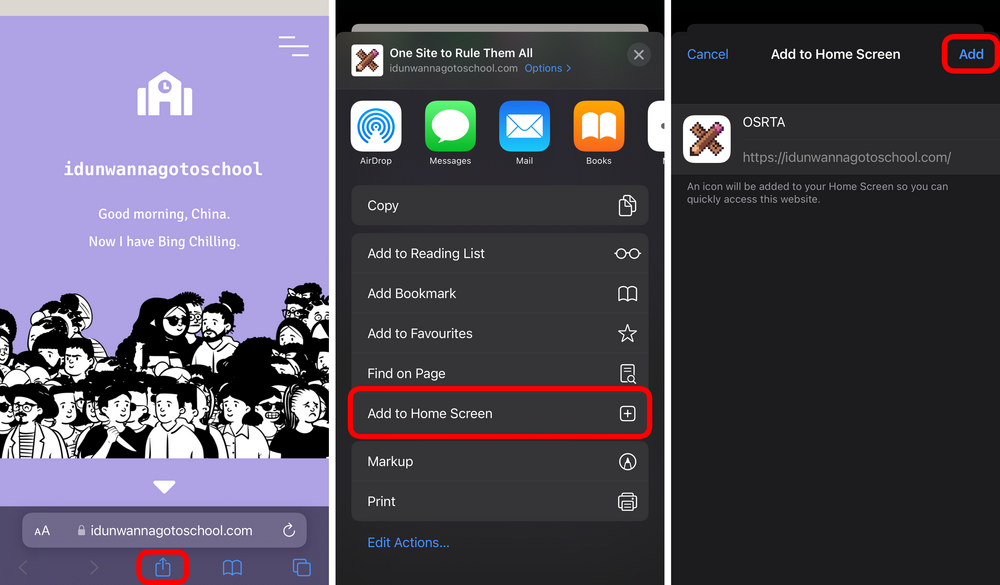
A PWA can only be installed on iOS/iPadOS using the Safari web browser. First, navigate to OSRTA in Safari. Press the "Share" button and select "Add to Home Screen" from the popup. Lastly, tap "Add" in the top right corner to finish installing the PWA. It will now be on your home screen.
Note 1: Only devices with iOS/iPadOS 16.4 or above support push noifications.
Note 2: Since iOS/iPadOS 16.4, PWAs can also be installed from any supporting browsers such as Chrome.
Installing a PWA on Android
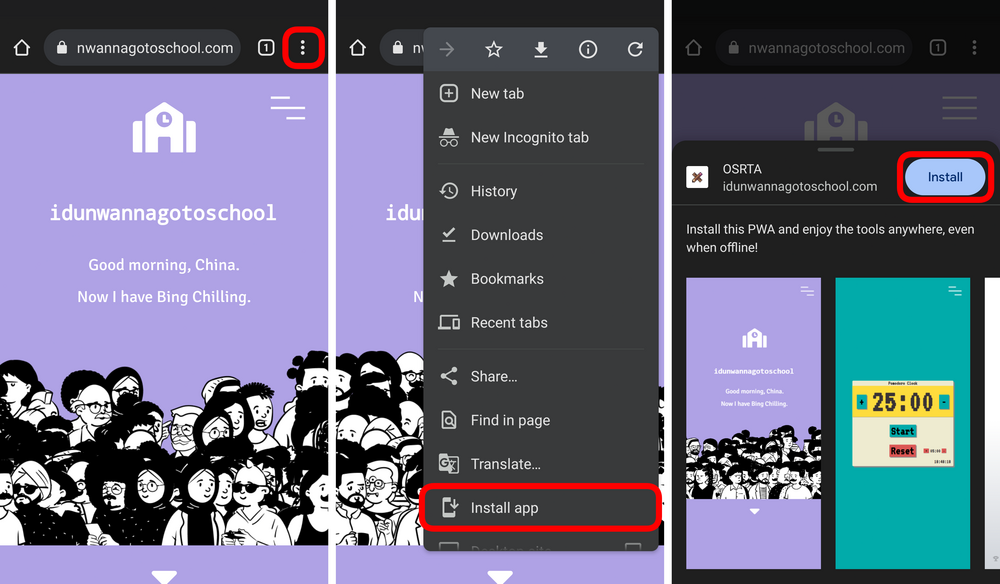
The default Chrome browser is capable of installing PWAs for Android. First, navigate to OSRTA in Chrome. Press the "three dot" icon in the upper right to open the menu. Select "Add to Home screen." Press the "Add" button in the popup. The PWA is now installed and available on your home screen.
Installing a PWA on a Windows PC or Mac
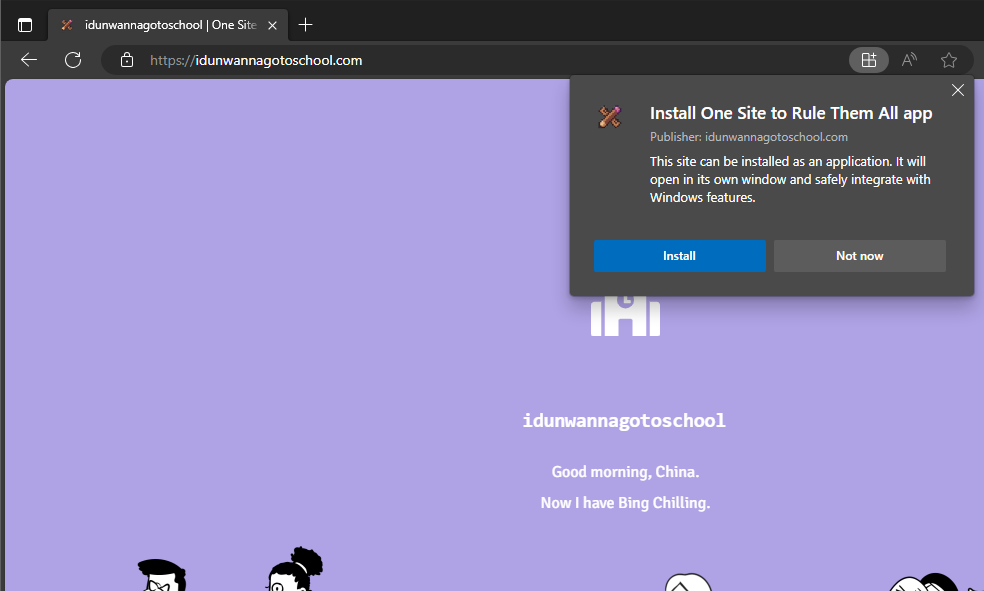
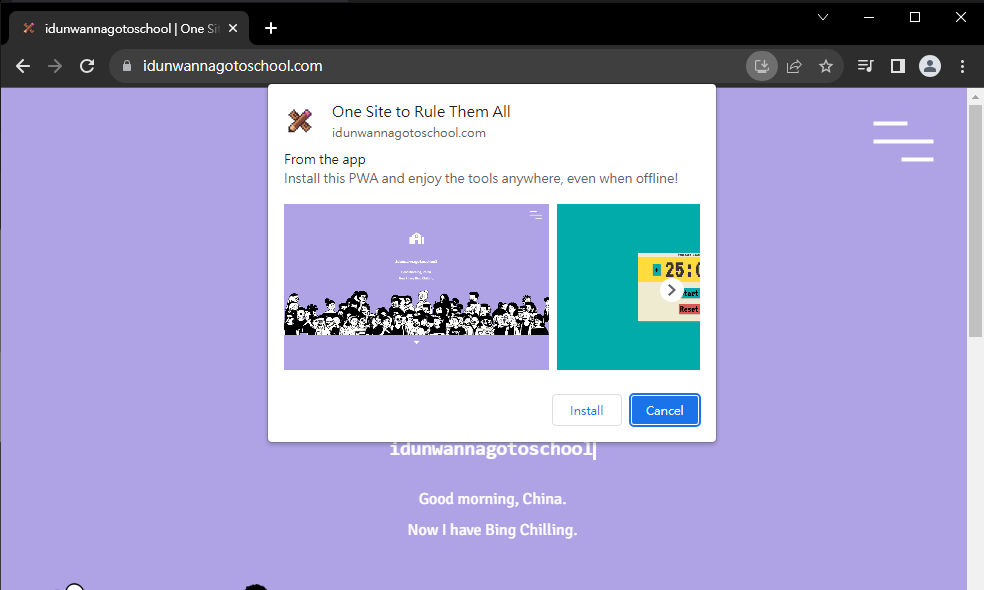
Google Chrome and Microsoft Edge currently have the best support for PWAs on Windows and Mac OS. The installation process is very similar for both browsers. First, navigate to OSRTA. There will be an icon on the right side of the URL bar. Click the icon then click the "Install" button. Alternatively, you can install the PWA from the "three dot" menu.
On a Windows PC, the PWA will be available in the start menu. On a Mac, the PWA will be in the launcher and in the spotlight search.
Google Chrome
Microsoft Edge